
In today’s fast-paced world, mobile banking has become an essential tool for managing your bank account on the go. Central Bank of India offers its robust mobile banking service, Cent eeZ, providing a convenient and secure way to access your accounts anytime, anywhere. This guide will walk you through the simple steps to activate your Cent eeZ mobile banking. Let’s get started.
Prerequisites for Activation:
Before you begin the activation process, ensure you have the following readily available:
- Your Central Bank of India Debit Card
- Your Customer Information File (CIF) number.
- The mobile number registered with your Central Bank of India account.
- A stable internet connection.
Step-by-Step Activation Process for Central Bank of India Mobile Banking Cent eeZ
Follow these detailed steps to activate your Central Bank of India Mobile Banking:
Step 1: Initiate New User Registration

- Install and open the Central Bank of India Cent eeZ mobile banking application on your smartphone.
- On the login screen, locate and tap on the “OMNI Channel New User Registration” option. This is your gateway to setting up new mobile banking access.
Step 2: Enter Registration Details
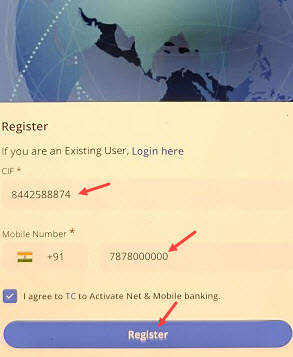
- You will be prompted to enter your CIF (Customer Information File) number. This is a unique identification number provided by the bank.
- Next, enter your Mobile Number which is registered with your Central Bank of India account. Ensure this is the same number you wish to use for mobile banking alerts and transactions.
- Once all details are entered, tap on the “Register” button.
Step 3: User Authentication via Debit Card
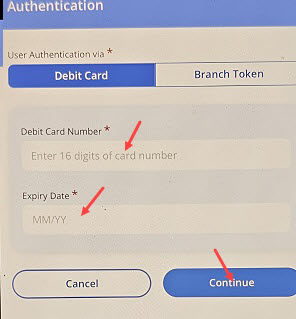
- To authenticate your identity, select the “Debit Card” option under “Authentication”.
- Enter the 16-digit Debit Card Number accurately in the designated field.
- Provide the Expiry Date of your debit card in MM/YY format.
- After entering the details, tap on the “Continue” button.
Step 4: Set Your New User ID
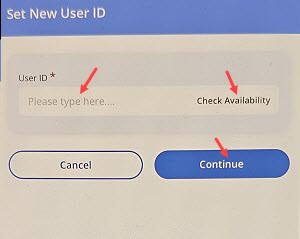
- Now, you need to create a unique User ID for your mobile banking login. Enter your desired User ID in the provided field.
- Tap on “Check Availability” to ensure your chosen User ID is not already taken. If it is, you’ll need to select a different one.
- Once a unique User ID is confirmed, tap on “Continue”.
Step 5: Set Your Login MPIN

- You will now set your MPIN. This is your login password.
- Enter your desired MPIN in the “Enter MPIN” field.
- Re-Enter MPIN in the next field to confirm it. Make sure both entries match.
- Tip: Choose a strong, memorable MPIN that is difficult for others to guess.
- Tap on “Continue”.
Step 6: Set Secure Message & Image
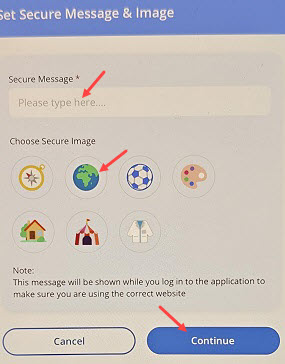
- This step enhances your security by allowing you to set a Secure Message and choose a Secure Image. This message and image will be displayed when you log in, confirming that you are on the correct bank website/application and not a phishing site.
- Enter a personalized Secure Message in the provided text box.
- Choose a Secure Image from the available options by tapping on your preferred image (e.g., the Globe image as shown in the example).
- Tap on “Continue”.
Step 7: Registration Success Confirmation
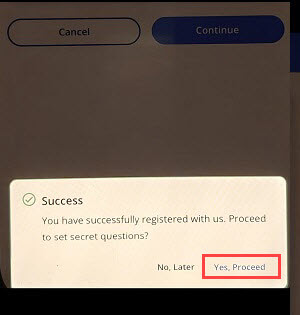
- Upon successful completion of the previous steps, you will see a “Success” message confirming that you have successfully registered.
- The prompt will ask: “You have successfully registered with us. Proceed to set secret questions?”.
- It is highly recommended to set your secret questions for added security and account recovery purposes. Tap on “Yes, Proceed”.
Step 8: Set Security Questions

- To further secure your account and assist with password recovery, you will set three security questions and their answers.
- For Question 1, tap on “Please select” and choose a question from the dropdown list. Then, enter your Answer.
- Repeat this process for Question 2 and Question 3.
- Important: Remember your answers precisely, including capitalization and spacing, as they might be required for verification in the future.
- Once all three security questions and their answers are set, tap on “Continue”.
Congratulations! You have now successfully activated your Central Bank of India Mobile Banking (Cent eeZ). You can now log in using your newly created User ID and MPIN to enjoy the convenience of banking from your mobile device.
Hope this step-by-step guide will help you to activate Central Bank of India’s latest mobile banking App Cent eeZ.
