
Are you looking to access your Bank of India account statement quickly and conveniently? This guide will walk you through the simple steps to download your last 3 months’ statement directly from the Bank of India mobile banking app. Get a clear overview of your transactions and manage your finances with ease!
Downloading your bank statement is a crucial task for financial tracking, loan applications, or tax purposes. Bank of India’s mobile banking app makes this process incredibly user-friendly. Follow these straightforward steps to get your statement in minutes.
Download Bank of India Last 3 Months Statement From Mobile Banking
If you don’t have Bank of India Mobile Banking faciity then first install and activate BOI omni neo bank application on your phone. You just need your Debit card and registered mobile number to activate BOI mobile banking.
Now follow these steps and get your Bank of India account last 3 months statement:-
Step 1: Login To Mobile Banking & Access Your Profile
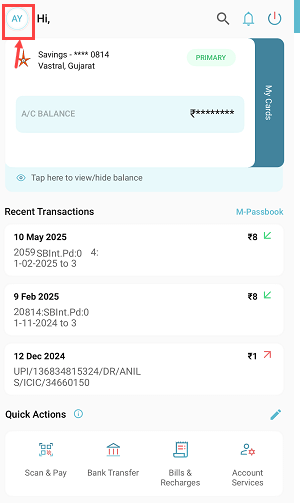
The first step is to log in to your Bank of India mobile banking application. Once you’re on the home screen, tap on your profile icon, which is typically represented by your initials or a generic user icon in the top-left corner of the screen.
Step 2: Navigate to Account Details
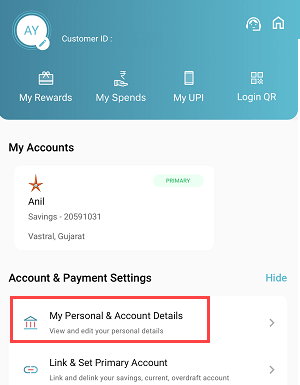
After tapping on your profile, a new screen will appear. Scroll down and locate the “My Personal & Account Details” option. Tap on this to proceed, as it will lead you to a page where you can view your account information and initiate statement requests.
Step 3: Find the ‘Statements’ Section
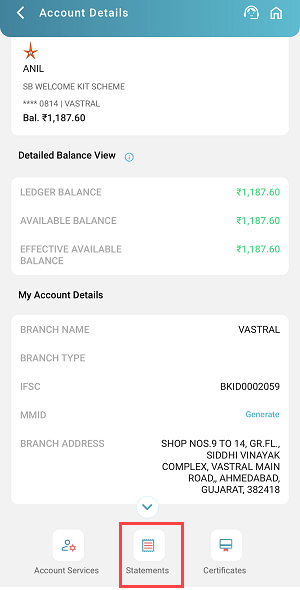
On the “Account Details” screen, you’ll see various options related to your account. Look for and tap on the “Statements” icon or tab, which is highlighted in red in the provided image. This is your gateway to accessing different types of account statements.
Step 4: Select ‘Last 3 Months’ Statement
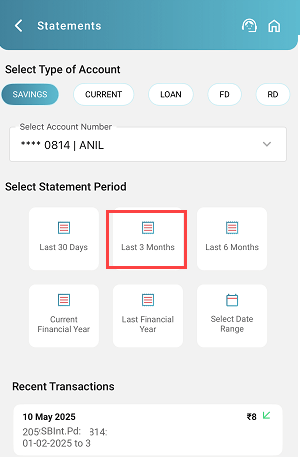
Now you’re on the “Statements” page. Here, you’ll be presented with various statement period options. To download your statement for the past three months, tap on the “Last 3 Months” option, which is clearly highlighted. Ensure your correct account number is selected if you have multiple accounts.
Step 5: Choose PDF Format for Download
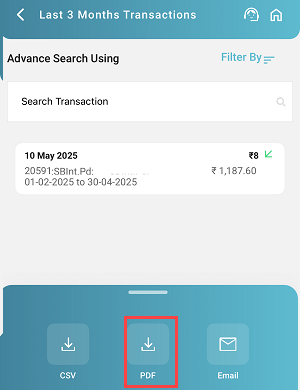
After selecting the “Last 3 Months” period, the app will display a summary of transactions for that period. To download the statement, you will be given options like CSV, PDF, or Email. To get a readable, formatted document, select the “PDF” option.
Step 6: Opt for “Download Statement Without Digi Sign”
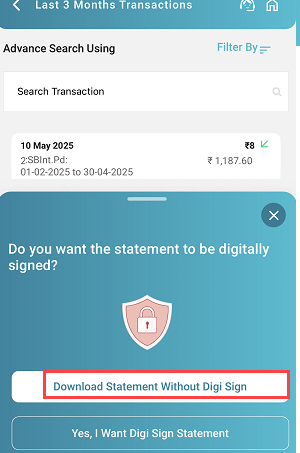
A pop-up will appear asking if you want the statement to be digitally signed. For a quick download, it’s often sufficient to choose “Download Statement Without Digi Sign.” Tap on this option to proceed with generating your statement.
Step 7: Note Your Statement Password
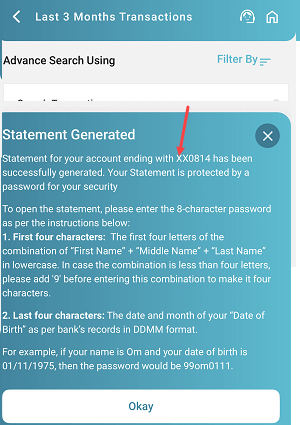
After initiating the download, a “Statement Generated” message will appear. This is a crucial step! The statement is password-protected for your security. The app will provide detailed instructions on how to generate this 8-character password.
- First four characters: The first four letters of the combination of “First Name” + “Middle Name” + “Last Name” in lowercase. If the combination is less than four letters, add ‘9’ before entering this combination to make it four characters.
- Last four characters: The date and month of your “Date of Birth” as per the bank’s records in DDMM format.
For example, if your name is Om and your date of birth is 01/11/1975, the password would be 99om0111. Make sure to note this down carefully. Tap “Okay” once you’ve understood the password format. (Refer to Image 7.PNG)
Step 8: View Your Downloaded Statement

Once the statement is generated and you’ve noted the password, the PDF file will typically open automatically or be saved to your device’s downloads folder. You will then need to enter the password you just derived to view your detailed bank statement.
Congratulations! You have successfully downloaded your Bank of India statement for the last three months from the mobile banking app. You can download account statements for up to one year through mobile banking.
