
Accessing your Aadhaar card is crucial for numerous official and personal tasks in India. However, a common hurdle for many is the requirement of a One-Time Password (OTP) sent to the registered mobile number. This becomes a significant problem if you have lost your registered number, it is inactive, or you never had a mobile number linked to your Aadhaar in the first place. This dependency on OTP can make a simple task like downloading your e-Aadhaar feel impossible.
Fortunately, the Unique Identification Authority of India (UIDAI) has introduced a revolutionary solution through its official new mobile application, Aadhaar. By leveraging advanced face authentication technology, you can now securely verify your identity and download your Aadhaar card directly to your smartphone without needing an OTP. This guide will walk you through the entire process, step-by-step, making it easy for anyone to access their digital Aadhaar card.
Table of Contents
How to Download Aadhaar Card without OTP: A Step-by-Step Guide
This process uses the official new Aadhaar app’s secure face authentication feature to verify your identity. Before you begin, ensure you have a smartphone with a working front camera and have your 12-digit Aadhaar number handy. Follow these simple steps to get your e-Aadhaar PDF.
Step 1: Install the Official mAadhaar App
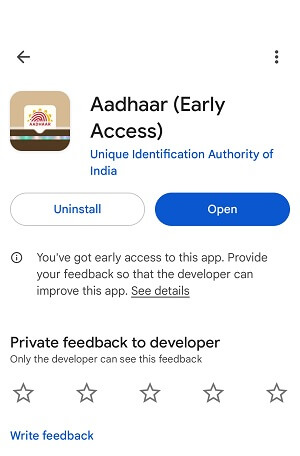
The first step is to download and install the official Aadhaar application.
- Go to the Google Play Store (for Android) or the Apple App Store (for iOS).
- Search for “Aadhaar“.
- Identify the official app by the developer “Unique Identification Authority of India (UIDAI)”.
- Tap on “Install” and wait for the application to be downloaded and installed on your device.
Step 2: Open the App and Grant Permissions
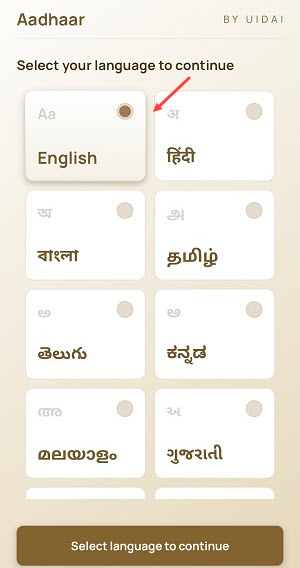
Once installed, open the mAadhaar app. You will be prompted to go through a quick initial setup.
- The app will ask you to select your preferred language. Choose from the list and continue.
- You will be asked to grant certain permissions, such as access to your device’s location and files, which are necessary for the app to function correctly and save the downloaded PDF. Allow these permissions to proceed.
Step 3: Enter Your Aadhaar Details
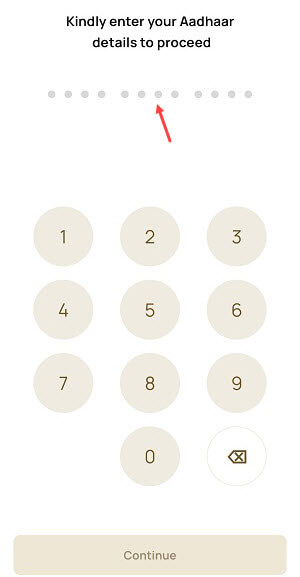
On the main screen, you will begin the registration process.
- Enter your 12-digit Aadhaar number carefully in the provided field.
- The app will now proceed to the authentication step. You can use Aadhaar registered mobile number or non-registered mobile number for activation.
Step 4: Authenticate Using Face Scan (No OTP Required)
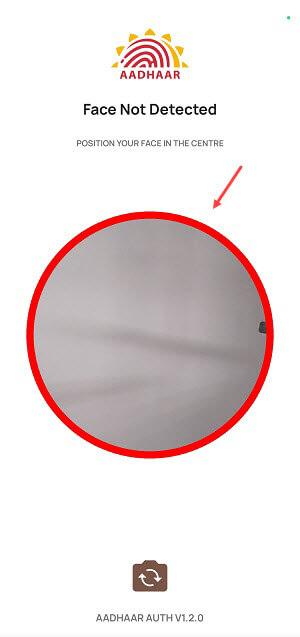
This is the most crucial step that bypasses the need for an OTP.
- The app will display “Face Authentication Advisories.” Read these instructions carefully. They typically include:
- Keeping your face centred within the circle.
- Ensuring good lighting on your face and avoiding backlights.
- Removing any tinted glasses.
- Blinking when prompted.
- Check the box to confirm you have read the instructions and tap “Proceed“.
- The front camera will open. Position your face within the on-screen oval. Keep your phone steady and blink your eyes as instructed. The app will automatically capture and verify your face against the photograph in the UIDAI database.
Step 5: Create Your 6-Digit Login PIN
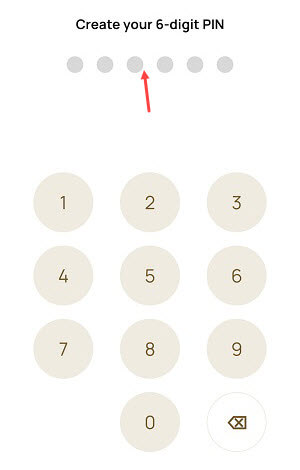
After your face is successfully authenticated, you need to set up a security PIN for future access to your profile on the app.
- You will be prompted to create a 6-digit PIN. Enter a number that is easy for you to remember but hard for others to guess.
- You will be asked to re-enter the PIN to confirm it. Once confirmed, your registration on the mAadhaar app is complete.
Step 6: Access and Download Your Aadhaar Card
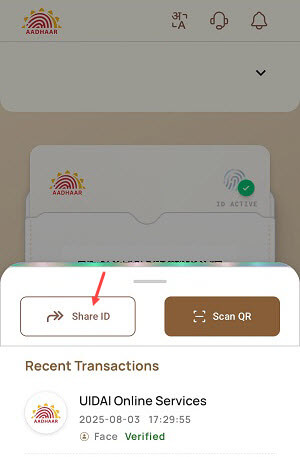
You will now be logged into your Aadhaar profile within the app.
- Swipe up from the bottom of the screen to reveal more options.
- Tap on the “Share ID” option.
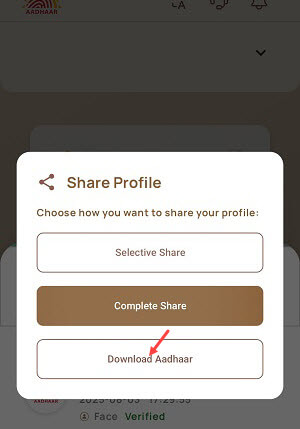
- A pop-up menu will appear with options like “Selective Share,” “Complete Share,” and “Download Aadhaar“.
- Click on “Download Aadhaar” to save the PDF file to your phone.
Step 7: Open the Password-Protected Aadhaar PDF
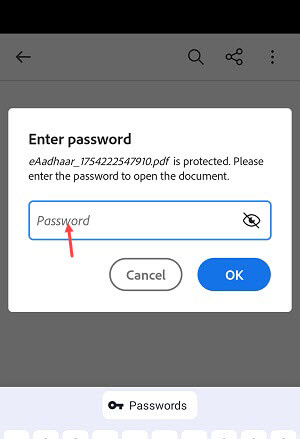
The downloaded Aadhaar card is a password-protected PDF file to ensure its security.
- Open your phone’s file manager and navigate to the “Downloads” folder to find the file named
eAadhaar_... .pdf. - Tap to open it. You will be prompted to enter a password.
- The password is a combination of the first four letters of your name (in CAPITAL letters) as written on your Aadhaar card, followed by your year of birth (in YYYY format).
- Example: If your name is AJAY KUMAR and your year of birth is 1986, your password will be AJAY1986.
- Enter the correct password, and your e-Aadhaar card will open. You can now view it, print it, or share it as needed.
Final Words
The mAadhaar app’s face authentication feature is a significant step towards making Aadhaar services more accessible for everyone. It eliminates the reliance on OTPs, providing a secure and convenient alternative for citizens who may not have access to their registered mobile number. By following the simple steps outlined above, you can easily download your official Aadhaar card PDF anytime and anywhere, directly on your smartphone.
Frequently Asked Questions (FAQ)
Q1: Is it safe to use face authentication on the mAadhaar app?
A: Yes, it is a highly secure feature developed by UIDAI. The technology matches your live facial scan with the photograph stored in the official Aadhaar database, ensuring only you can access your details.
Q2: Can I use this method if my mobile number is not linked to my Aadhaar at all?
A: Absolutely. This face authentication method is specifically designed for scenarios where OTP verification is not possible, including cases where no mobile number is registered.
Q3: What is the password for the downloaded Aadhaar PDF?
A: The password is an 8-character code: the first four letters of your name as on Aadhaar (in all capital letters) followed by your four-digit year of birth (YYYY). For example, if your name is Priya Sharma and your birth year is 1995, the password will be PRIY1995.
Q4: What should I do if the face authentication fails repeatedly?
A: If the scan fails, ensure you are following all the on-screen advisories. Check for good, even lighting on your face, remove any glasses or hats, keep the background plain, and hold your phone steady at eye level. Blinking clearly when prompted is also essential for the liveness check.
Q5: Does this download process work on all smartphones?
A: This process works on most modern Android and iOS smartphones that have a functional front-facing camera and can support the latest version of the mAadhaar application.
